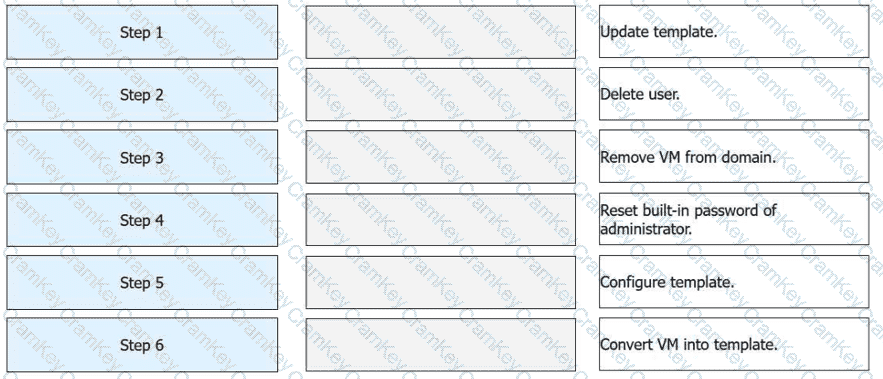
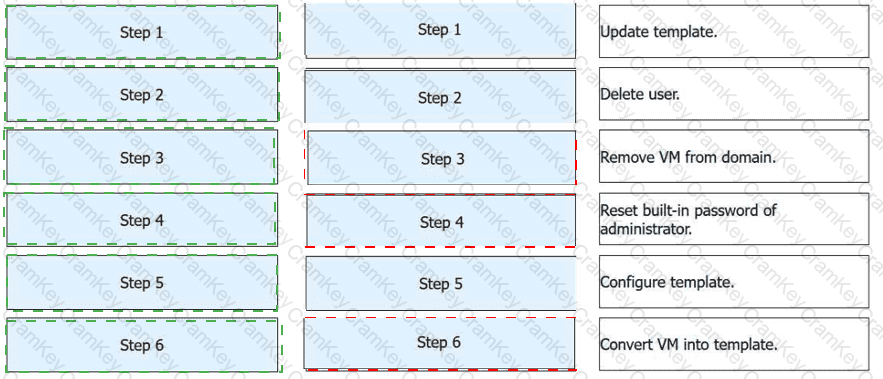
Step
Operation
Step 1
Update template.
Step 2
Delete user.
Step 3
Remove VM from domain.
Step 4
Reset built-in password of administrator.
Step 5
Configure template.
Step 6
Convert VM into template.
Step
Operation
Technical Rationale
Step 1
Update template
Power on the VM to install the latest OS patches and software updates.
Step 2
Delete user
Remove user profiles and personal data to ensure the master image is clean.
Step 3
Remove VM from domain
Disjoin the VM from the AD domain to prevent Security Identifier (SID) or account name conflicts on new clones.
Step 4
Reset built-in administrator password
Set a secure, standardized baseline credential for the local administrator account.
Step 5
Configure template
Run theHuawei Desktop Preparation Toolto optimize the OS and encapsulate the system.
Step 6
Convert VM into template
Use the management console to officially mark the VM as a read-only template resource.
Initialization (Steps 1-4):Before a VM can be turned into a "Golden Image," it must be stripped of its unique identity. This includes removing it from anyActive Directory (AD)domain and clearing out specific user accounts. Failing to remove the VM from the domain can lead to "duplicate computer name" errors when new desktops are provisioned from the final template.
System Encapsulation (Step 5):The "Configure template" phase is often synonymous withSysprepor the Huawei-specific encapsulation process. This step resets the OS clock and generalizations, such as the hardware-dependent drivers, so the image can boot correctly on any host in the cluster.
Finalization (Step 6):Once converted into a template, the VM is no longer a running instance. It becomes a master file that theITA (IT Adapter)uses for rapid service provisioning.
According to the official Huawei HCIA-Cloud Computing documentation, converting a provisioned full-copy virtual machine (VM) back into a template is a specific administrative workflow used for updating "Golden Images" without starting from a bare VM. The process must follow a logical sequence to ensure that the final template is clean, generalized, and compatible with the FusionAccess management plane.
The workflow begins withStep 1: Update template, which involves powering on the VM to install necessary software patches, security updates, or new applications. Once updated,Step 2: Delete useris performed to remove any cached user profiles, temporary files, or local user data that should not exist in the master image.Step 3: Remove VM from domainis a critical step to ensure that the VM is no longer associated with a specific Active Directory security identifier (SID) or domain account, preventing SID conflicts when the template is later used to provision multiple new desktops.
Following the domain disjunction,Step 4: Reset built-in password of administratoris required to ensure the FusionAccess system can maintain management access via a known, local credential during the subsequent automation phases.Step 5: Configure templateinvolves running theHuawei Desktop Preparation Tool. This tool performs system encapsulation (similar to Sysprep), optimizes the OS for VDI usage, and prepares the Huawei Desktop Agent (HDA). Finally,Step 6: Convert VM into templateis the final action performed in the FusionCompute or FusionAccess management console. This marks the VM as a read-only template resource, ready to be used by the ITA (IT Adapter) for rapid service provisioning.