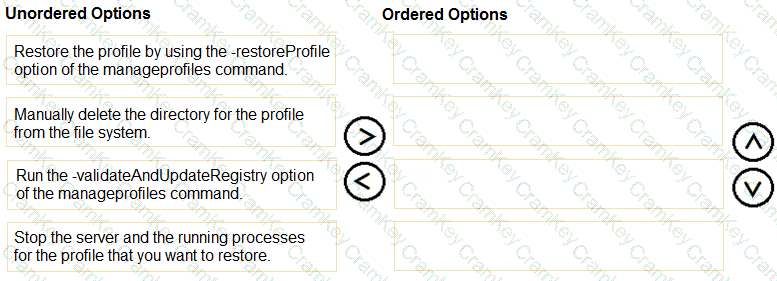
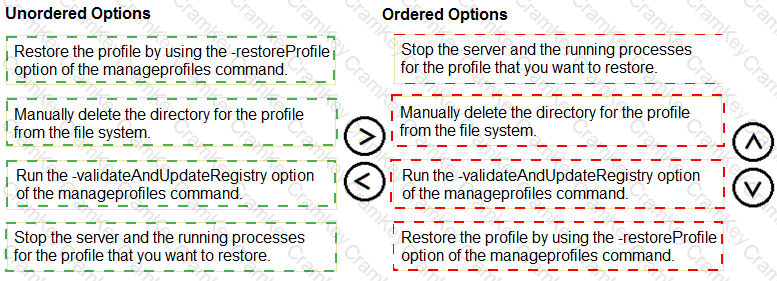
1. Stop the server and the running processes for the profile that you want to restore.
2. Manually delete the directory for the profile from the file system.
3. Run the -validateAndUpdateRegistry option of the manageprofiles command.
4. Restore the profile by using the -restoreProfile option of the manageprofiles command.
Restoring a profile that was removed or damaged requires the registry and the file system to agree, because manageprofiles tracks every profile in a registry file and refuses to restore into a name it still believes exists. The correct sequence is as follows. First, stop the server and any running processes for the profile that is to be restored, since files in use cannot be replaced safely. Second, manually delete the profile's directory from the file system, so that no remnants of the old profile conflict with the restored one. Third, run the manageprofiles command with the -validateAndUpdateRegistry option, which compares the registry with what exists on disk and removes the entry for the profile whose directory is gone. Fourth, restore the profile with the -restoreProfile option of manageprofiles, supplying the backup archive created earlier with -backupProfile.
The order is significant. Running the registry validation before the directory is deleted would leave the entry in place, and the restore would fail because the profile name is still registered. Restoring before validation would produce the same conflict. Stopping the processes first prevents partial or locked file deletions.
Administrators should keep in mind that a profile backup restores configuration at the time the archive was taken, and that the restore must be performed on the same installation level and under the same path as the original.
[Reference: manageprofiles command: -backupProfile, -restoreProfile, -validateAndUpdateRegistry; Backing up and restoring profiles.]